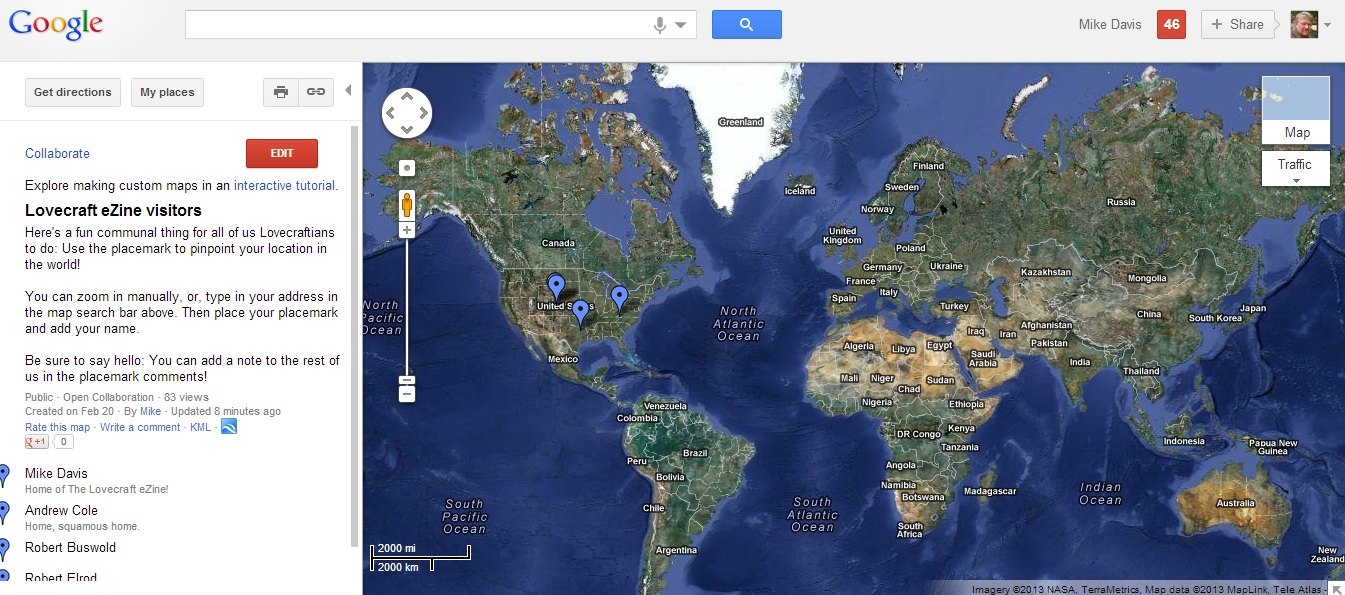
Here’s something fun. We’re always talking about the Lovecraftian community and what a close-knit group we are. I thought it would be neat to create a map that shows where all of us are in the world.
You can add your name, your location, and even a note to say “hello” to the rest of us!
Click here to visit the Lovecraft eZine Visitor Map, and add yourself. See you there!
.
Discover more from The Lovecraft eZine
Subscribe to get the latest posts sent to your email.
 The Lovecraft eZine
I think I did it. Here in Carcosa we don’t do *tech* very well………….. .
LikeLike
…and done. Pretty cool, thanks for setting it up!
LikeLike
havent found the edit button
LikeLike
Did you click on the link, not the map? I made the mistake of clicking on the map photo at first.
LikeLike
I think the place marker actually ended up at the end of the road rather than on my actual duplex, but close enough… 🙂
LikeLike
Done, I think.
LikeLike
Yeah! I found myself!
I actually put my marker on my east facing back porch, right in front of my is our peanut shaped pond and to my left is my garden, to the right…
lol.
How fun. And I never knew our driveway was at an angle with M82! I live about a quarter of a mile back in the woods. Thank you, Mr. John Deere for your awesome green tractor. There is no way I could use a snow blower on our driveway.
What an awesome way to get to know other Lovecraft fans in the area. I want to do this when we start our local garden club and writers group! Cool idea.
LikeLike
Will Visitor Map 2.0 include the Hyades, Mike?
LikeLike
How do you add your name to the map instead of an address?
LikeLike
Nick – you don’t have to add an address, you can just add your town if you want. You add the address/town FIRST by clicking on the placemark button on the top left of the map. Here are the steps:
(1) Click EDIT.
(2) Click the placemark button on the top left part of the map.
(3) Add your placemark, either by zooming in on your location, or by entering a town or address into the map bar above.
(4) Add your name and any notes to the popup box that you see when you place the placemark on the map.
(5) Click SAVE and DONE.
LikeLike